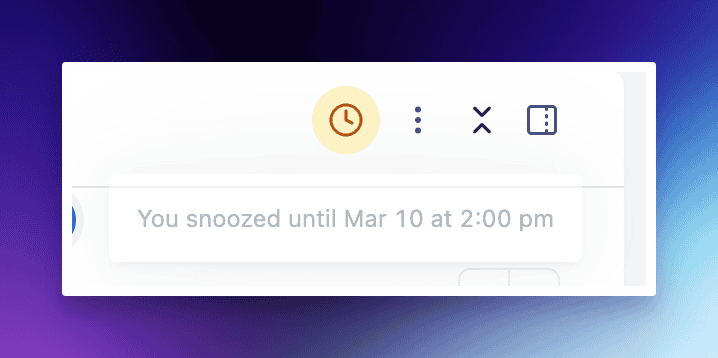
Snoozing allows you to temporarily remove a conversation from your active inbox and have it reappear at a later, more relevant time. This helps you stay focused on immediate tasks while ensuring that follow-ups don't fall through the cracks.
There are several ways to snooze a conversation depending on your current view:
From the Conversation Header: Click the Clock icon in the top-right corner of an open conversation to set a snooze time.
From the Reply Editor: You can snooze a conversation while sending a reply by clicking the Clock icon located in the bottom toolbar of the reply area.
From the Conversation List: In the inbox view, right-click a conversation or click the options menu to select Snooze conversation.
How to Snooze Conversation
Initiate snoozing
Press the snooze button from any place mentioned above.

Set the time
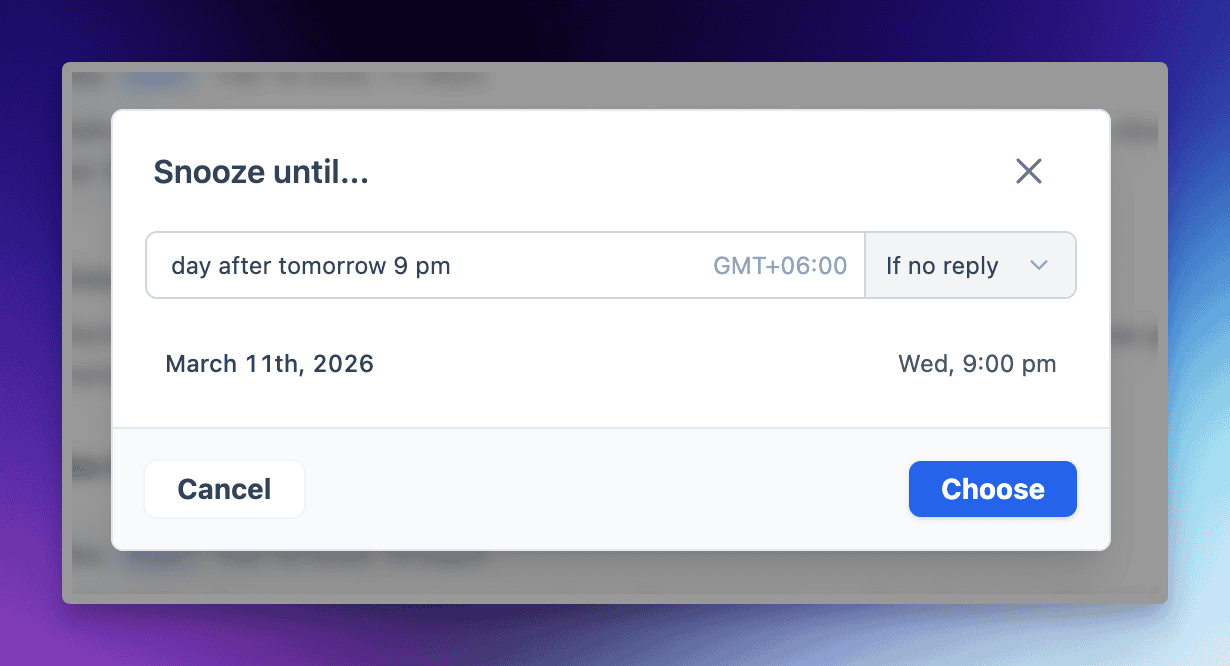
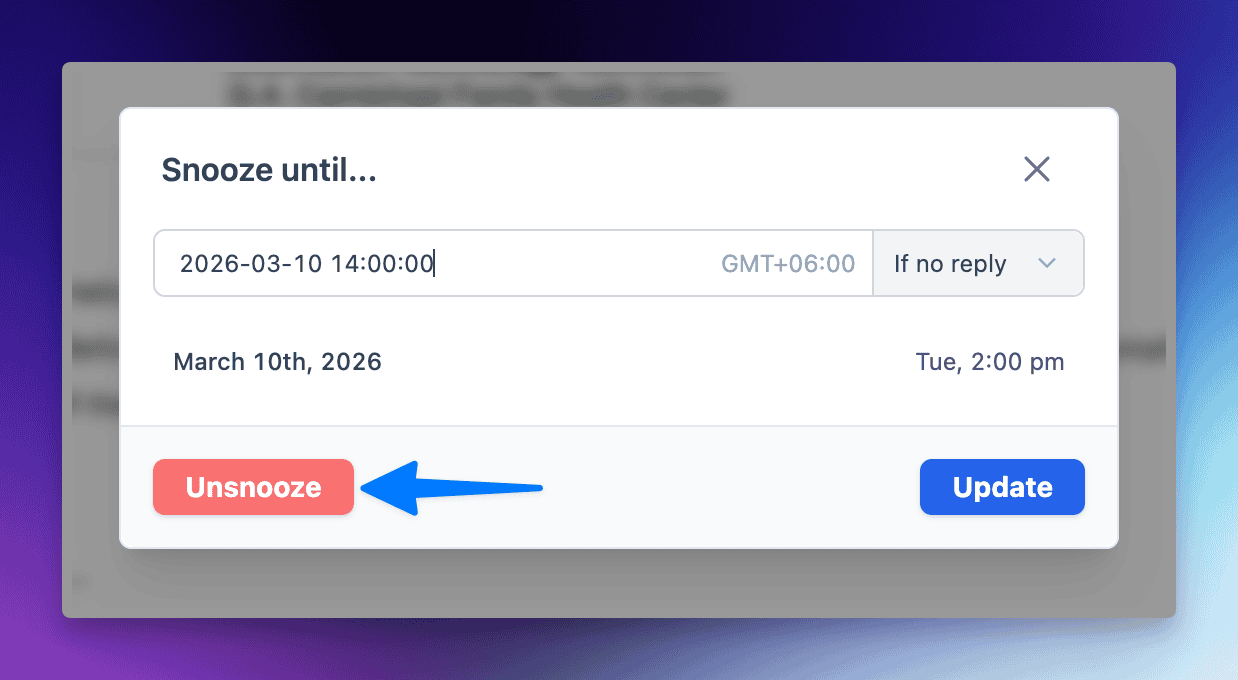
When you trigger the snooze button, a Snooze until... modal will appear. You can customize the following:
Flexible Time Input: Our system is designed to understand both specific dates and natural language. You can enter a time in two ways:
Standard Format: Use the precise format
MM/DD/YYYY HH:MM AM/PM(e.g., 03/05/2026 08:00 AM).Natural Language: Use human-friendly phrases like
tomorrow at 3pm,next Wednesday,in 2 hours, orfriday 10am.
Snooze conditions
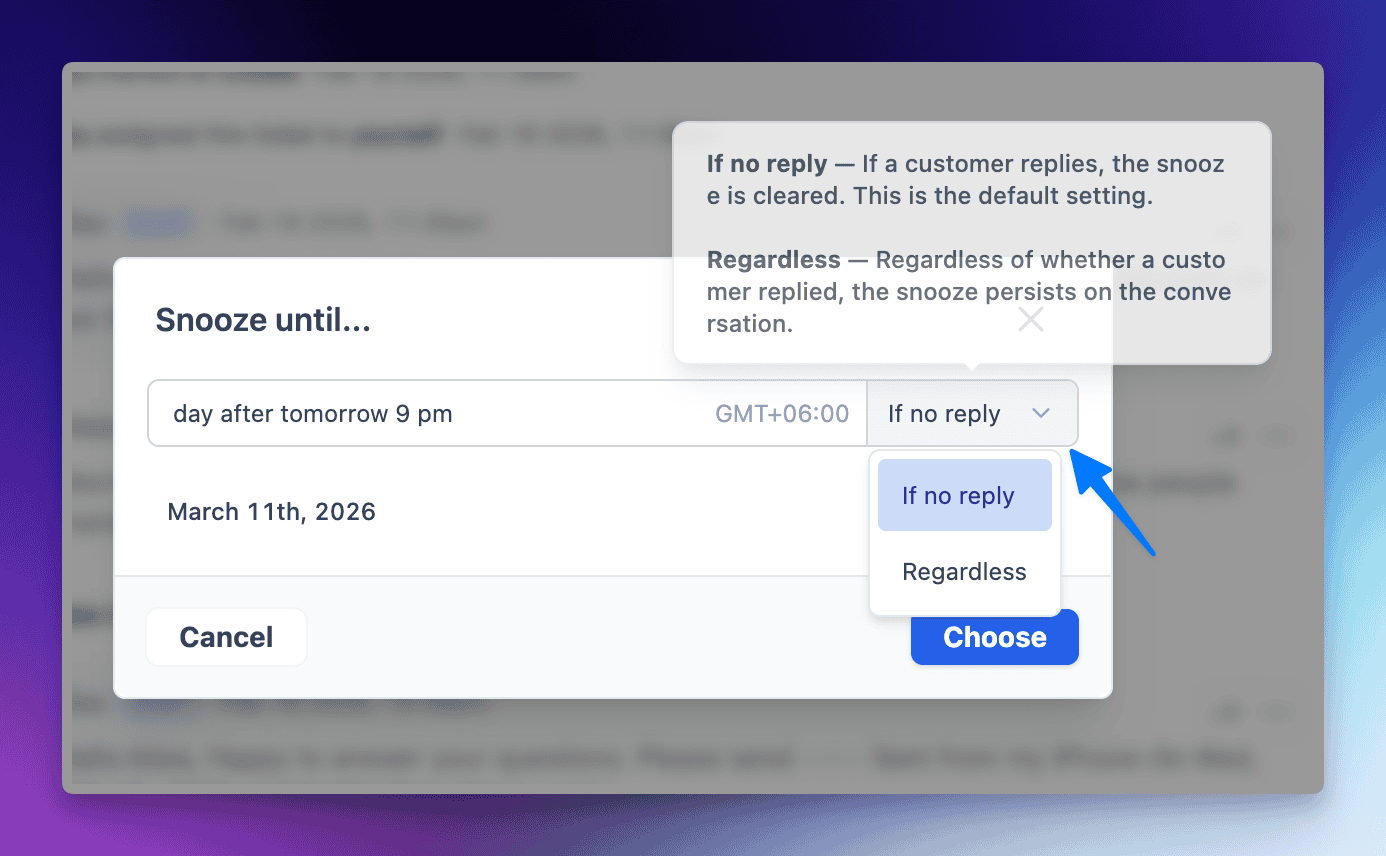
You can choose how the snooze behaves if the customer reaches out earlier:
If no reply: The snooze is automatically cleared if the customer replies before the set time. This is the default setting.
Regardless: The snooze persists until the scheduled time, even if the customer sends a message in the meantime.
Updating a Snoozed Conversation
If your schedule changes, you can easily adjust the timing of a snoozed conversation:
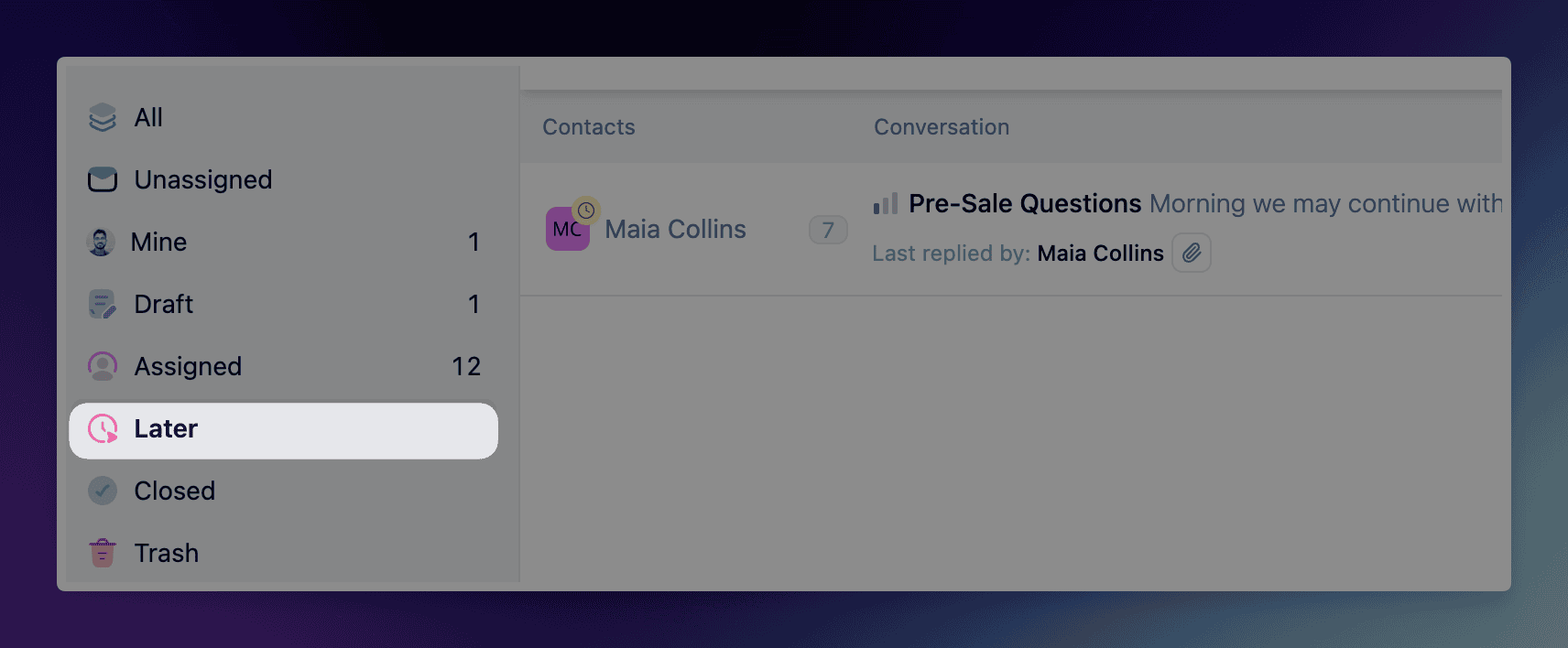
Locate the conversation in the Later folder or via the conversation header.
Click the Clock icon again to reopen the snooze modal.
Select a new date or time using the Flexible Time Input.
Click Update Snooze to save the new time.
Unsnooze a Conversation
If you need to bring a conversation back to your active inbox immediately before the scheduled time:
Open the snoozed conversation.
Click the Clock icon in the header.
Click the red Unsnooze button in the bottom left of the modal. The conversation will immediately return to your Open folder.
Timezone Setup
To set your timezone:
Visit your profile page by clicking on your avatar on bottom left corner and click on your name.
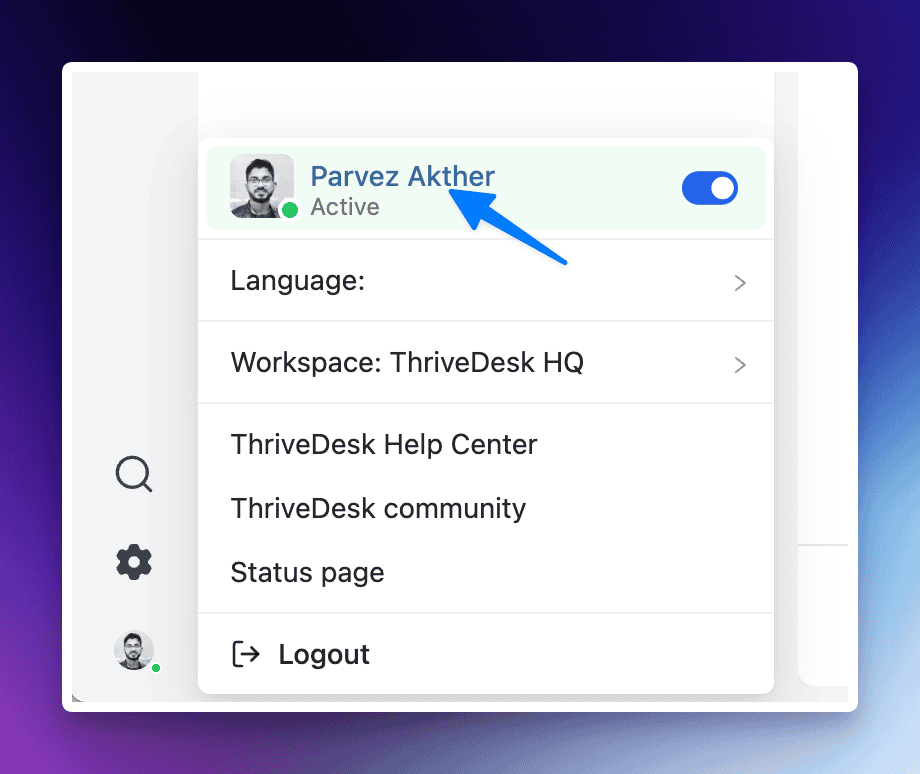
Then select your timezone from the dropdown.
Tip: You can also click the update timezone link directly from the Snooze modal to jump to these settings.
Managing Snoozed Conversations
The "Later" Folder: All snoozed conversations move to the Later section in your sidebar.
Visual Indicators: Conversations in the list view that are currently snoozed will display a small yellow clock icon over the contact's avatar.
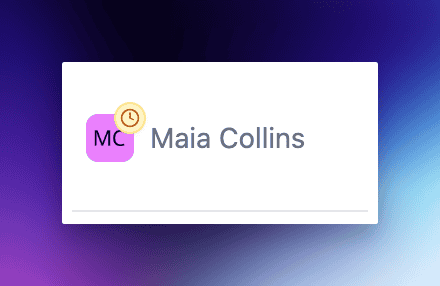
Viewing Snooze Status: Hovering over the clock icon in the conversation header will show a tooltip with the exact reappearance time (e.g., "You snoozed until Mar 5 at 2:00 pm").