

Scheduled replies(aka send later) allow you to draft a response and choose a specific future time for it to be sent to the customer. This is ideal for managing communication across different time zones or ensuring follow-ups land in a customer's inbox at the perfect moment.
How to Schedule a Reply/Send Later
Draft a reply
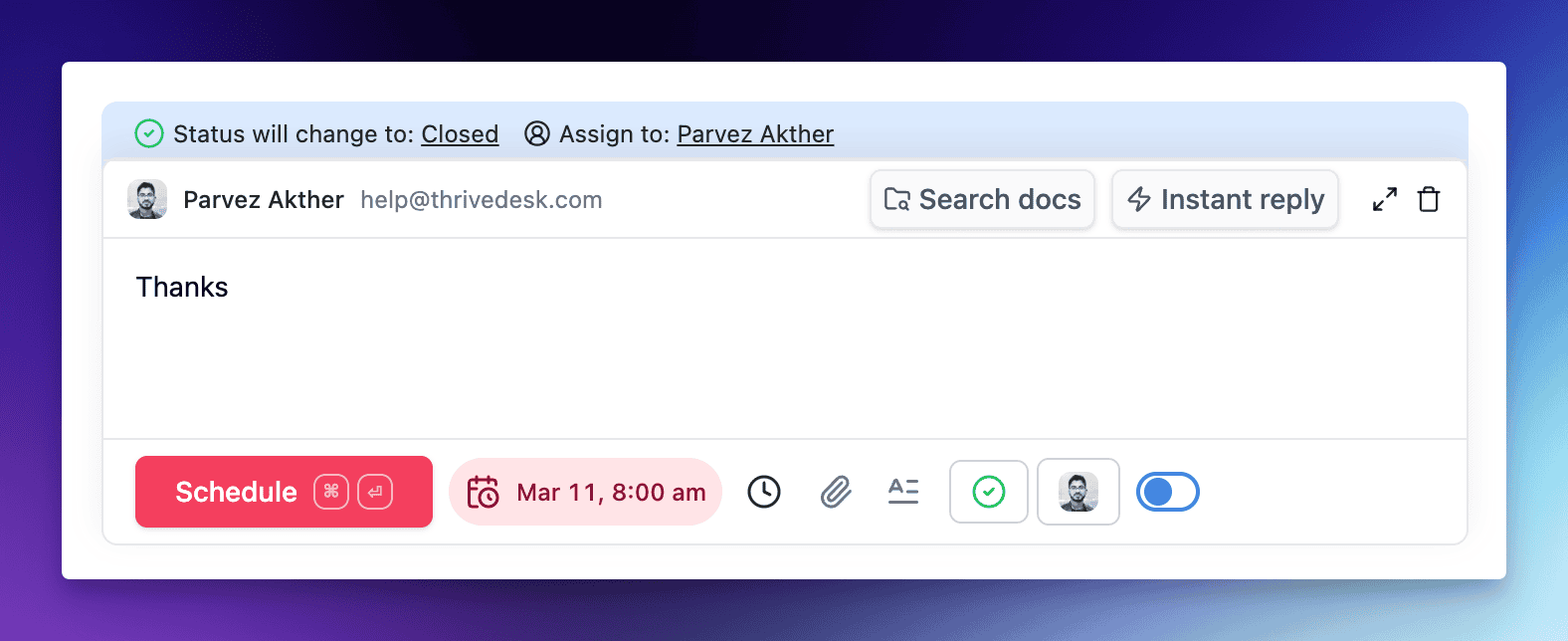
From the Reply Editor draft your message as usual. Instead of clicking the "Reply" button, click the Calendar icon located in the bottom toolbar of the reply area.

Set a time
After clicking the icon, a Send later modal will appear. Select your desired time and click Choose.
Once the time is set, the main button in the editor will change to Schedule. Click it to queue your message.

Schedule reply
Our system understands both specific dates and natural language:
Standard Format: Use a precise format like
MM/DD/YYYY HH:MM AM/PM(e.g., 03/05/2026 08:00 AM).Natural Language: Use phrases like
tomorrow 3am,next Friday,in 2 hours, orfriday 10am.
Select appropriate time and press Schedule button.
Schedule Condition
When you trigger the schedule action, the Send later modal allows you to customize the following:
Sending Conditions: Define how the message behaves if the customer reaches out earlier:
If no reply: Sends the message only if the customer doesn't reply before the scheduled time. (Default)
Regardless: Sends the message even if the customer replies before the scheduled time.
Managing Scheduled Actions
Scheduled messages appear at the bottom of the conversation thread with a Scheduled badge and a pink background. To manage a pending reply, follow the steps for each action below:

Delete a Scheduled Reply
If you no longer wish to send the message:
Locate the scheduled message bubble (pink background) at the bottom of the thread.
Click the options menu (...) on the right side of the bubble.
Select Delete. The message will be removed from the queue immediately.
Send Now
If you need to deliver the message immediately without waiting for the scheduled time:
Click the options menu (...) on the scheduled message bubble.
Select Send now.
The message will be delivered to the customer instantly and move from the scheduled state to a sent state.
Edit and Takeover
To modify the content or time of a scheduled message:
Click the options menu (...) on the scheduled message bubble.
Select Edit. This will load the message back into the reply editor.
Handle Takeover (if applicable): If the message was originally scheduled by another agent, a confirmation prompt will appear: "This schedule reply will be taken over to you."
Confirm the takeover to become the new owner.
Modify the text or click the Calendar icon to adjust the delivery time.
Click Schedule to save your changes and re-queue the message.
Timezone Setup
To set your timezone:
Click on the Settings (gear) icon in the bottom left sidebar.
Navigate to Workspace > General.
Under Select Timezone, choose your local timezone from the dropdown menu and click Save Settings.
Tip: You can also click the update timezone link directly from the Send later modal to jump to these settings.
Visual Indicators
The "Later" Folder: All conversations with an active scheduled reply move to the Later section in your sidebar.
Avatar Badge: A small red calendar icon will appear over the contact's avatar in the conversation list to indicate a pending reply.