

The Block Rules & Spam Handling feature manages unwanted conversations using two connected mechanisms: spam marking and block rules.
Spam marking flags individual conversations as spam, either manually, via automation, or automatically on incoming emails. Block rules act as an organization-level blocklist, matching emails, domains, or patterns to automatically mark incoming messages as spam before they reach the inbox.
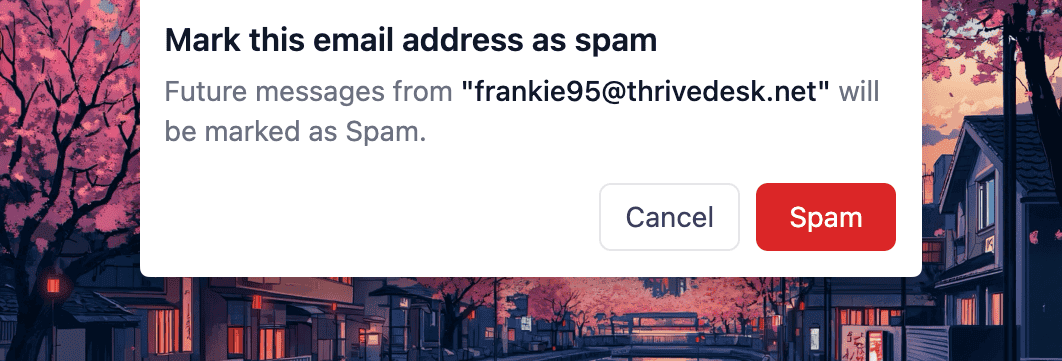
When a conversation is marked as spam, the sender’s email is added to the blocklist. Future messages from that sender are then automatically marked as spam on arrival, preventing inbox noise.
Let's start with the Block Rules
Go to Settings → Block Rules to view and manage your organization's blocklist.
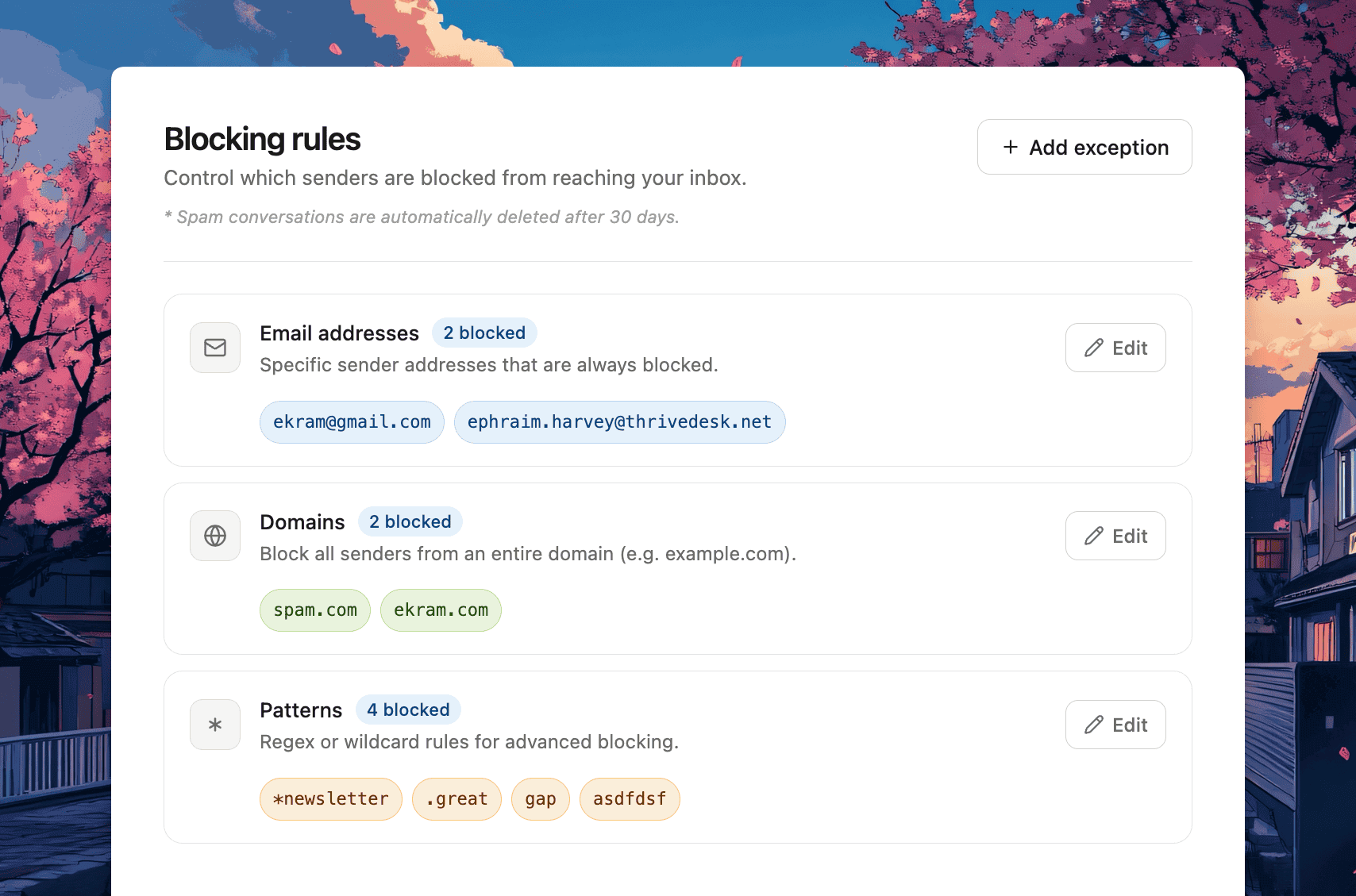
There are three different ways you can set block rules for your organization. You can add emails, domains, or patterns in bulk.
Email syntax uses email matching, such as user@email.com
Domain syntax uses the domain matching, like abc.com
Pattern syntax uses simple wildcard matching (not regex):
*matches any number of characters?matches exactly one characterExample:
*@spam*.comblocks any email from any domain starting withspam
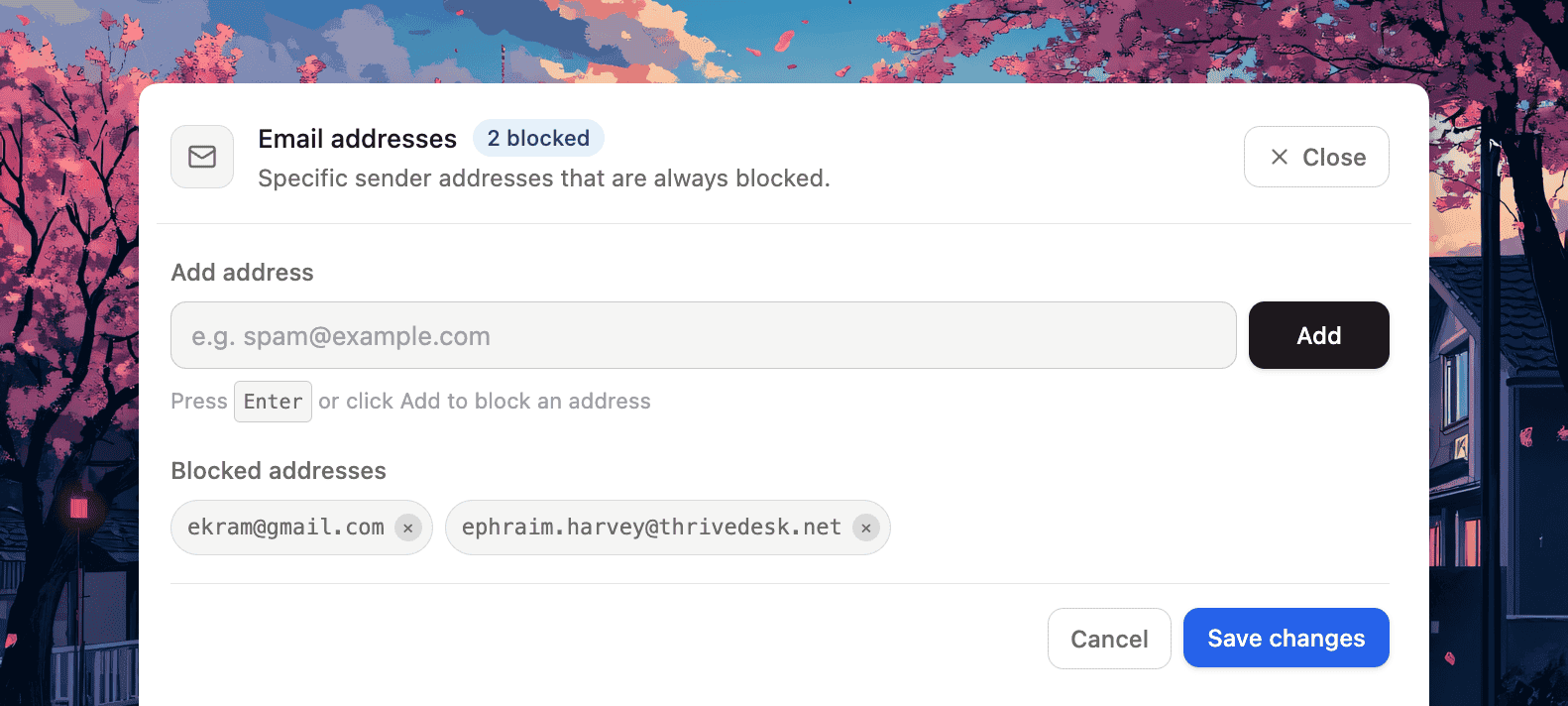
You can also update emails, domains, and patterns individually.
Block Rule Exceptions
Sometimes, certain emails or domains need to bypass standard block rules even if they match spam criteria.
To handle these cases safely and intentionally, we introduced Block Rule Exceptions.
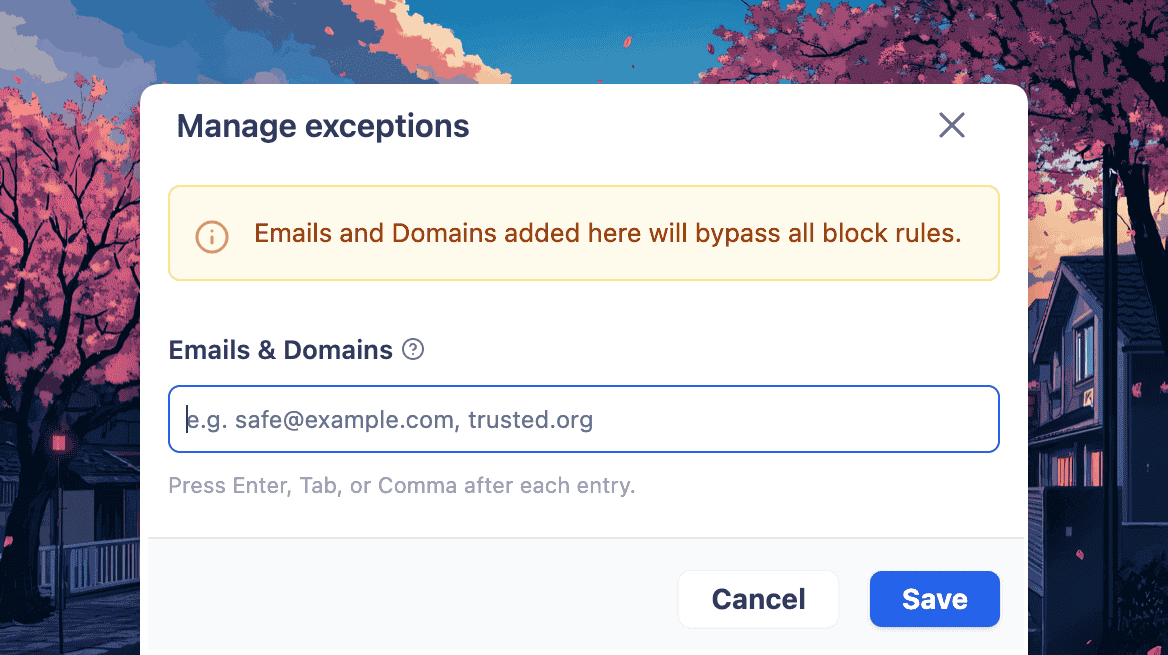
This allows specific senders or domains to be explicitly whitelisted, ensuring they are not blocked by automated filtering rules while keeping the overall system behavior predictable and controlled.
You can add multiple emails and domains here. e.g. safe@example.com, trusted.org
Exception values will bypass all blocking rules.
Marking a Ticket as Spam
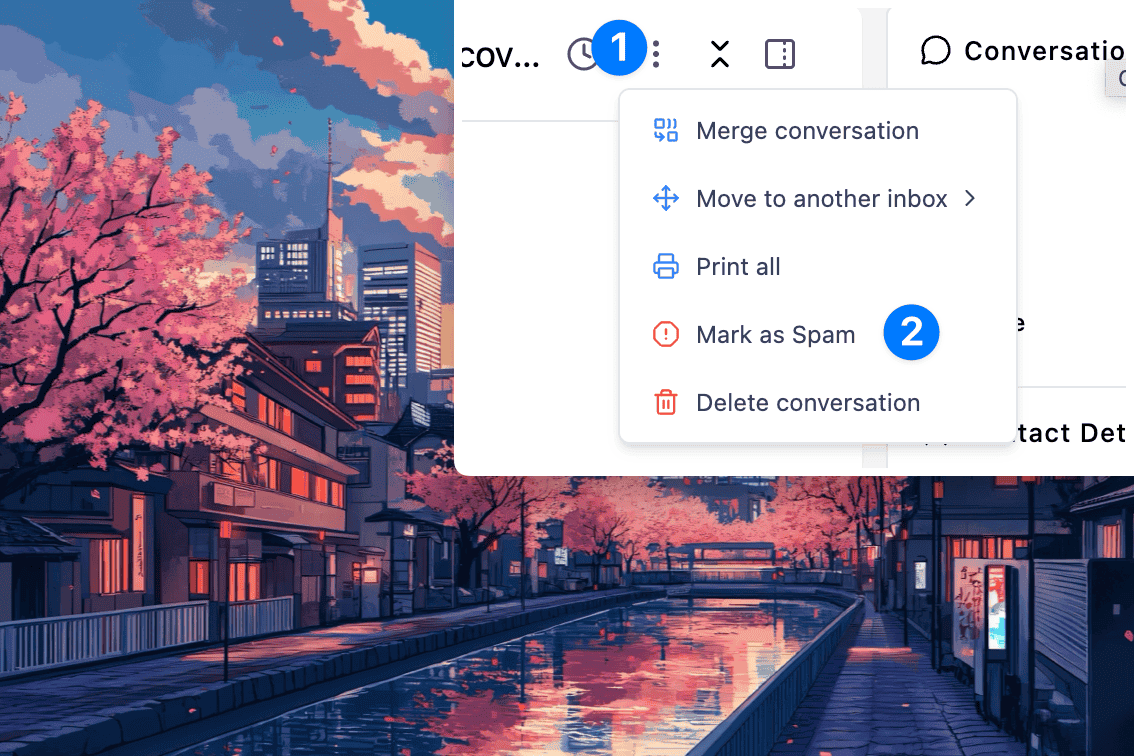
Go to the conversation page, then click the three-dot menu (marked as 1 in the image). From there, select “Mark as spam” (marked as 2). Once the conversation is marked as spam, it will be in the spam folder, and you will get the option to mark it as not spam.
When an agent clicks Mark as Spam on a conversation:
1. The conversation is flagged as spam.
2. The contact's email address is automatically added to the organization's blocklist.
3. A red Spam label is attached to the conversation.
Marking a Ticket as Not Spam
When an agent clicks Not Spam (unmark):
The spam flag is removed.
The "Spam" label is detached.
Unmarking a conversation does not remove the sender from the blocklist. You must do that separately in Settings → Block Rules. This is intentional; the sender is still considered a risk until explicitly unblocked.
When unmarking a conversation, a confirmation pop-up will appear asking whether you also want to unblock the sender. If you choose to unblock the user, their email or domain will be removed from the blocklist, and future messages from them will be delivered normally instead of being automatically marked as spam.
Permissions
Go to Settings → Roles & Permissions to view and manage the permission role.
Managing block rules requires the Manage Block Rules permission. Organization owners always have full access by default. Admins and agents can manage block rules only if this permission is explicitly enabled for their role.
Marking or unmarking conversations as spam does not require any additional permissions beyond the standard ability to update a conversation.