

Two-factor authentication asks for a second check after your password — a one-time code from an authenticator app, a passkey, an emailed code, or a recovery code — so a stolen password alone is not enough to sign in. You set it up on your own account; owners and admins can also require it for everyone in the organization.
settings.company:write (Account Owner and roles that have Company Write)Before you begin
Have an authenticator app ready if you will use one (for example 1Password, Google Authenticator, or Microsoft Authenticator), or a browser that supports passkeys.
Know your ThriveDesk account password. Setup, replacement, regeneration, and turning off all ask for it again.
Where to find it
Settings → Personal → Details → Security
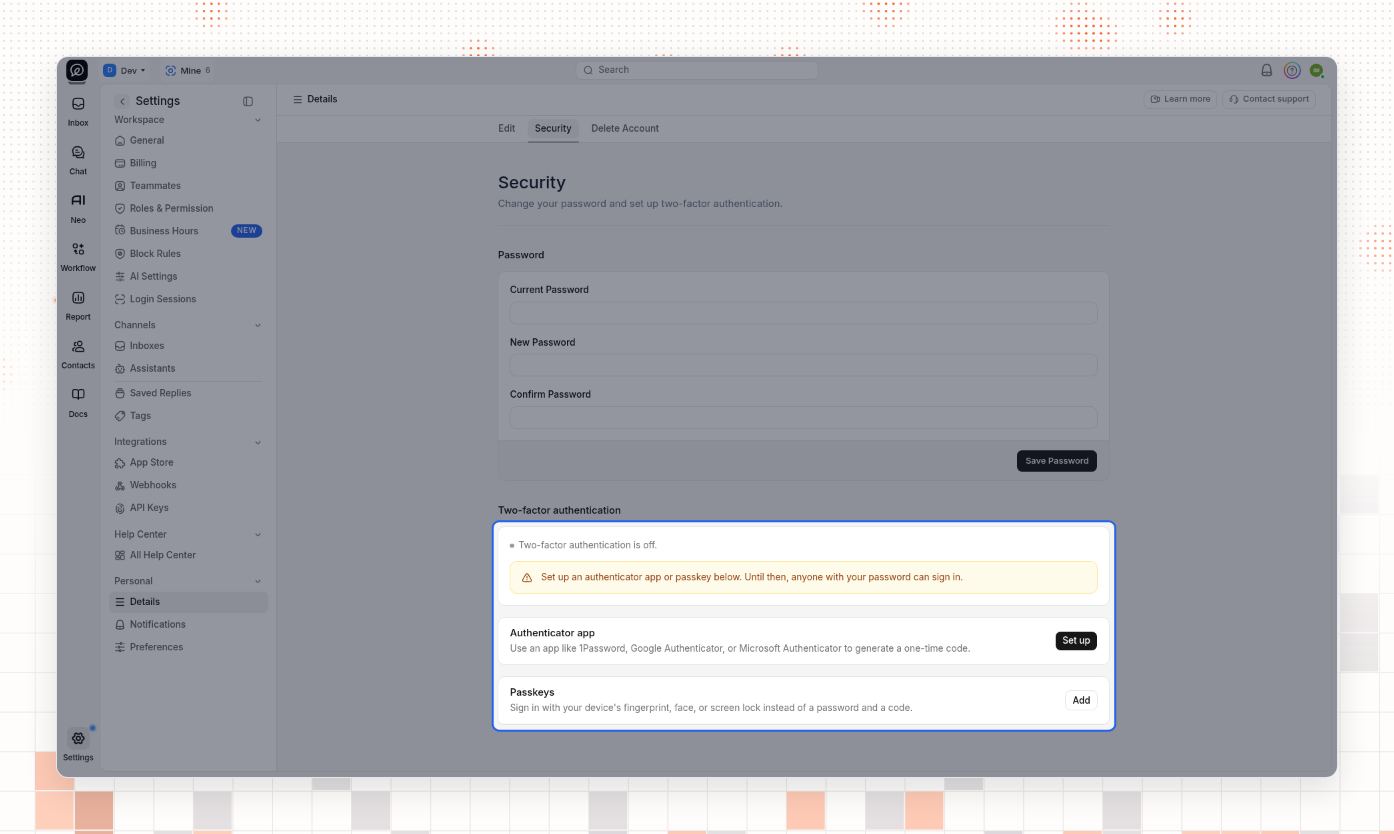
While two-factor authentication is off, the page shows a warning: Set up an authenticator app or passkey below. Until then, anyone with your password can sign in.
Set up an authenticator app
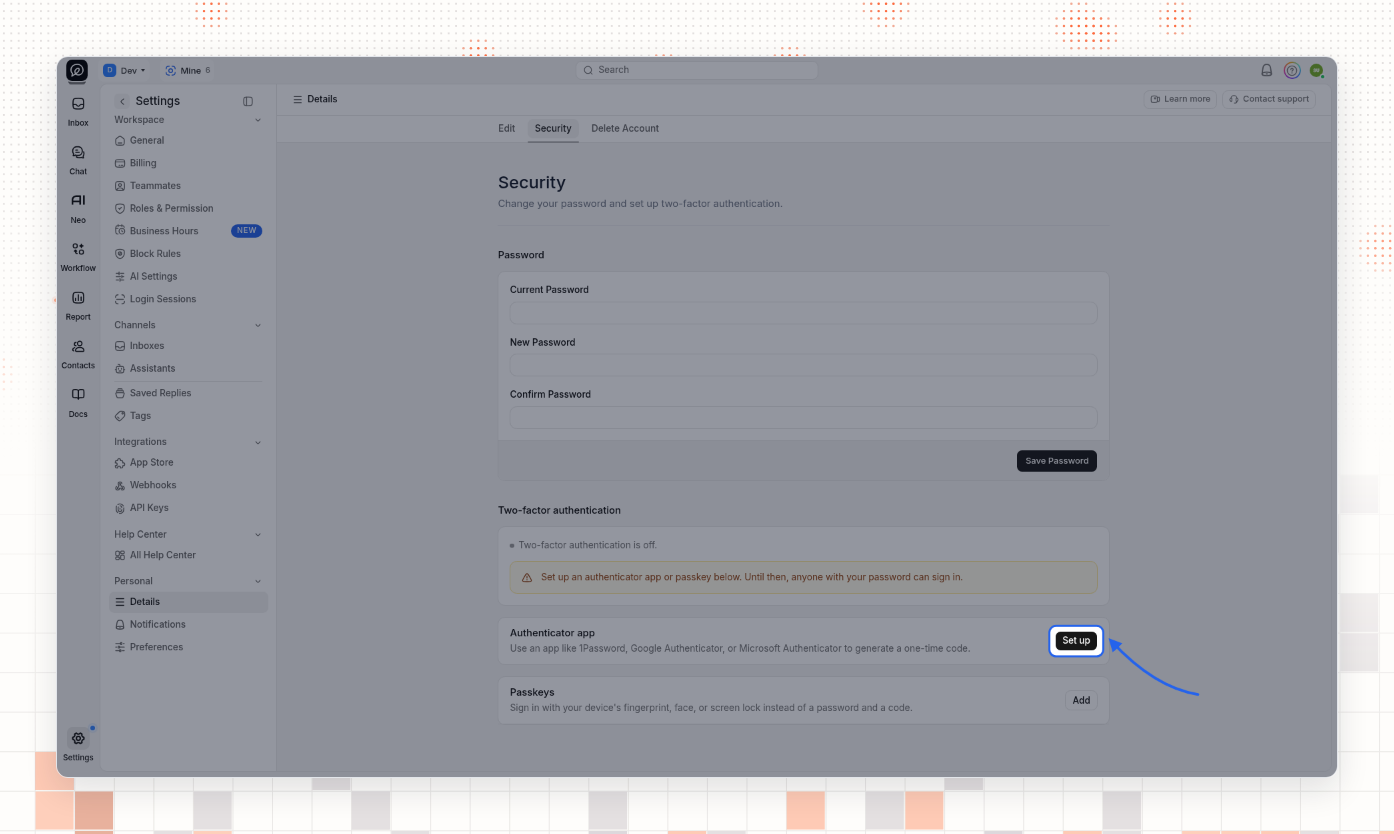
On Security, under Authenticator app, select Set up.
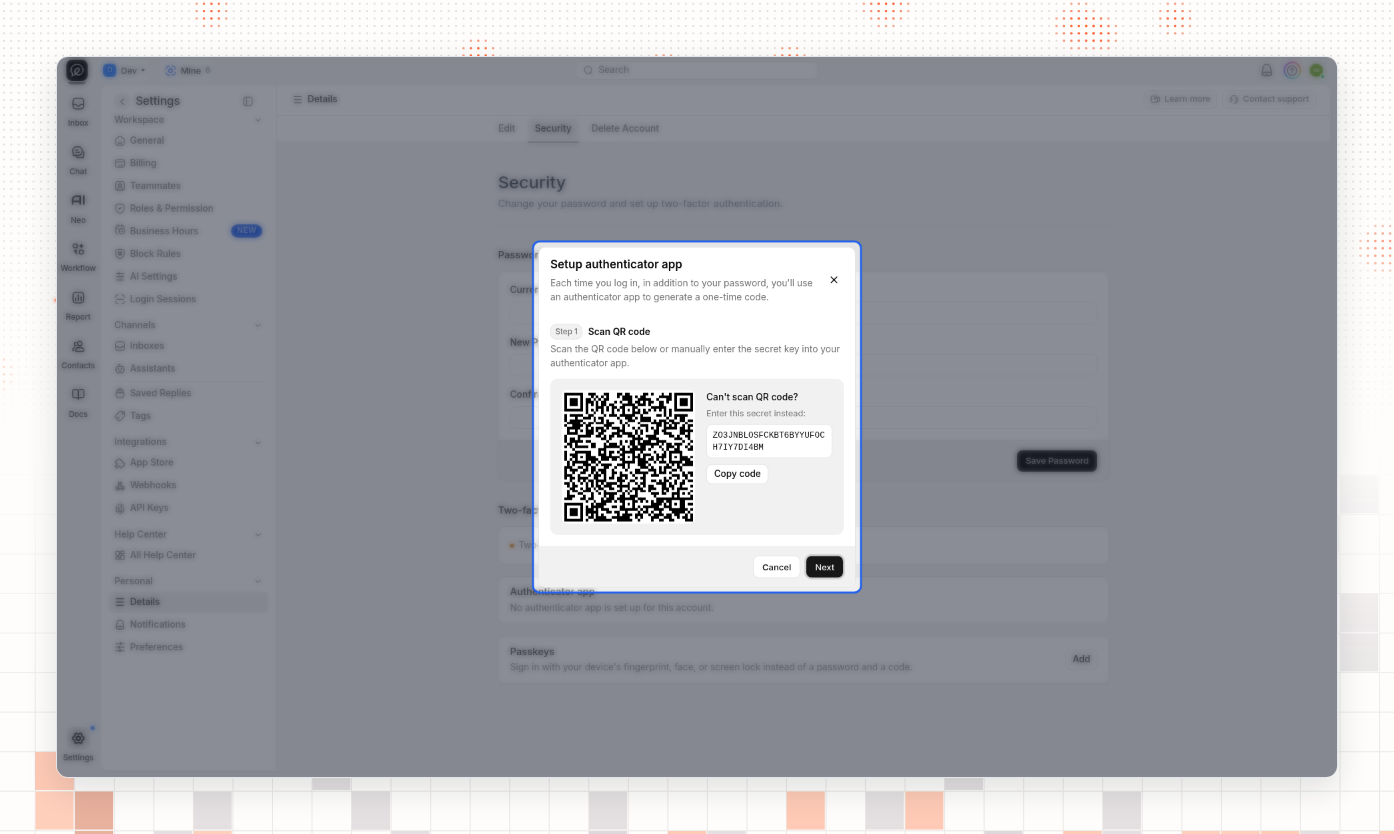
In Setup authenticator app, scan the QR code with your authenticator app. If you cannot scan, copy the secret under Can't scan QR code? and enter it in the app manually.
Select Next.
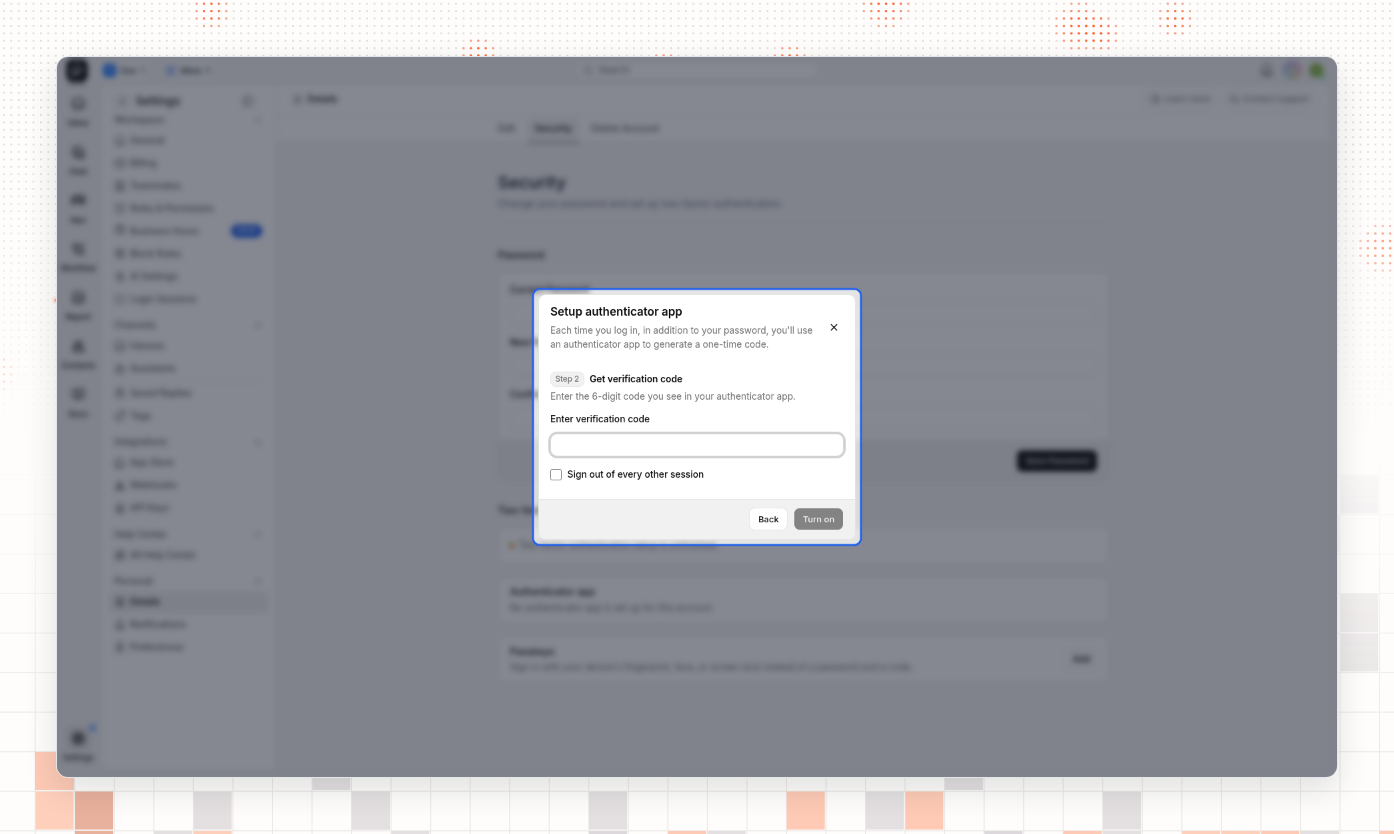
Enter the 6-digit code from your authenticator app. Optionally turn on Sign out of every other session.
Select Turn on, then enter your account password in Confirm your password and select Turn on again.
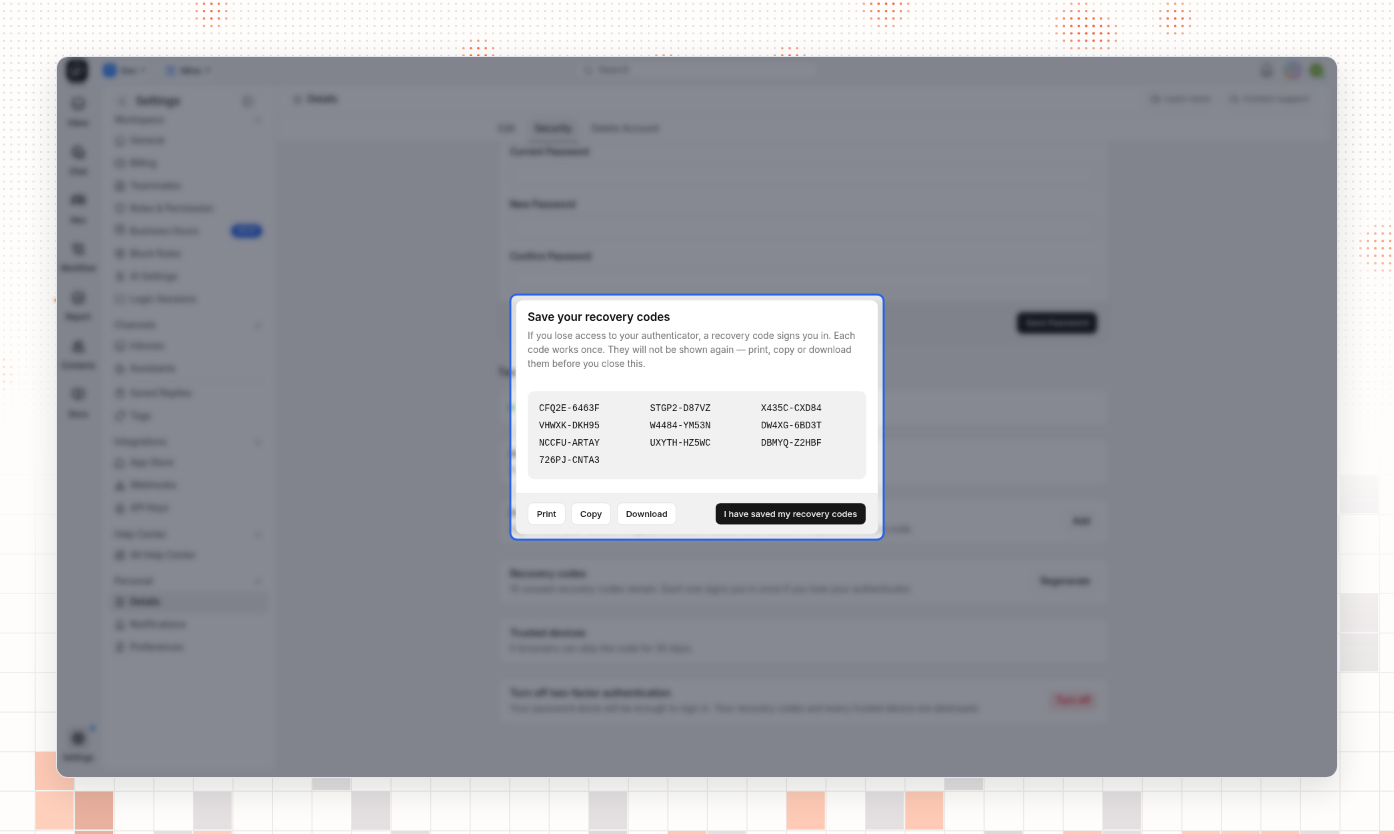
After a successful setup, ThriveDesk shows Save your recovery codes. Print, copy, or download them, then select I have saved my recovery codes. Each code works once. They are not shown again after you close this sheet.
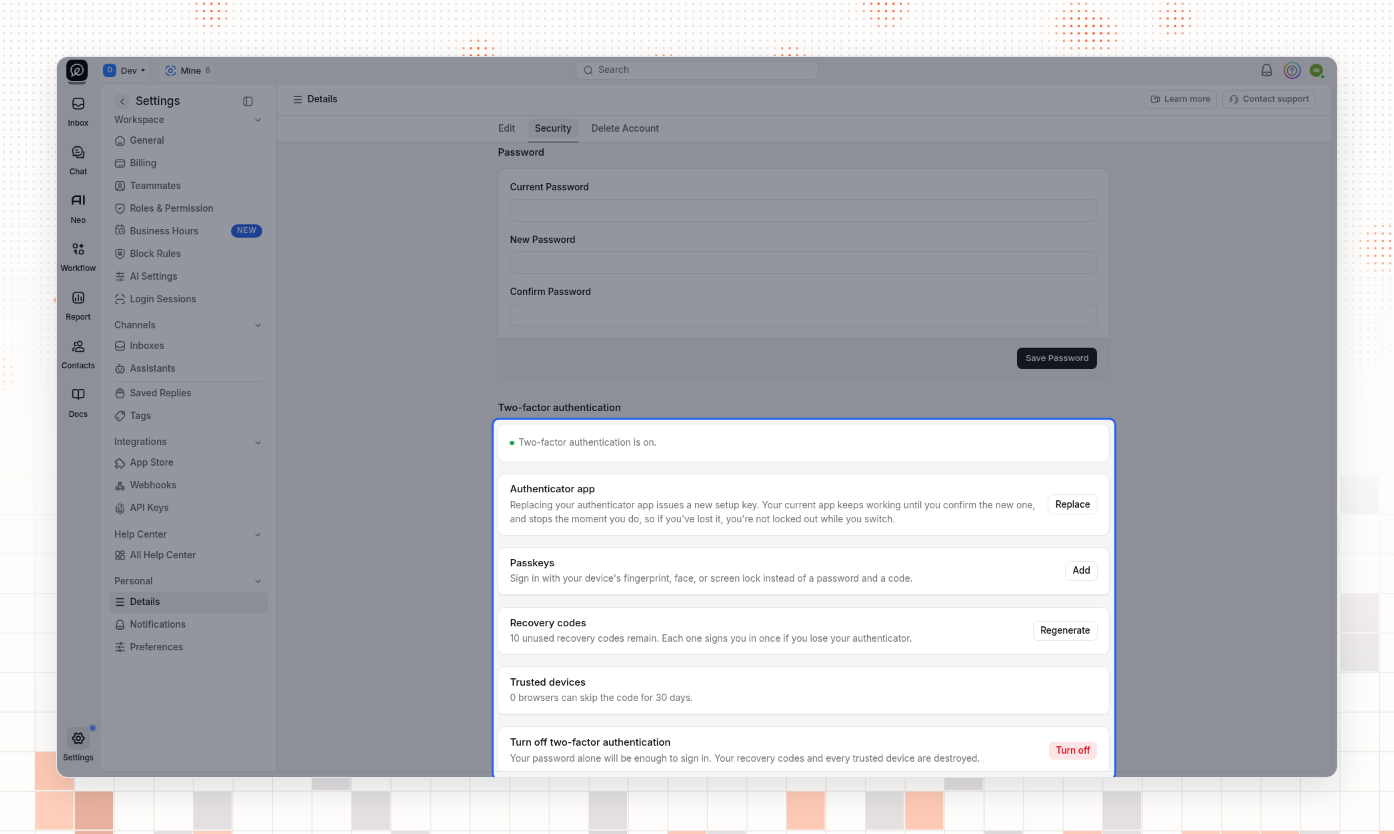
When setup is finished, the status reads Two-factor authentication is on. You can Replace the authenticator later; the old app keeps working until you confirm the new one, then it stops. Your recovery codes stay the same when you replace the authenticator.
Add a passkey
A passkey signs you in with your device's fingerprint, face, screen lock, or a hardware key. You can use a passkey alone or together with an authenticator app.
On Security, under Passkeys, select Add.
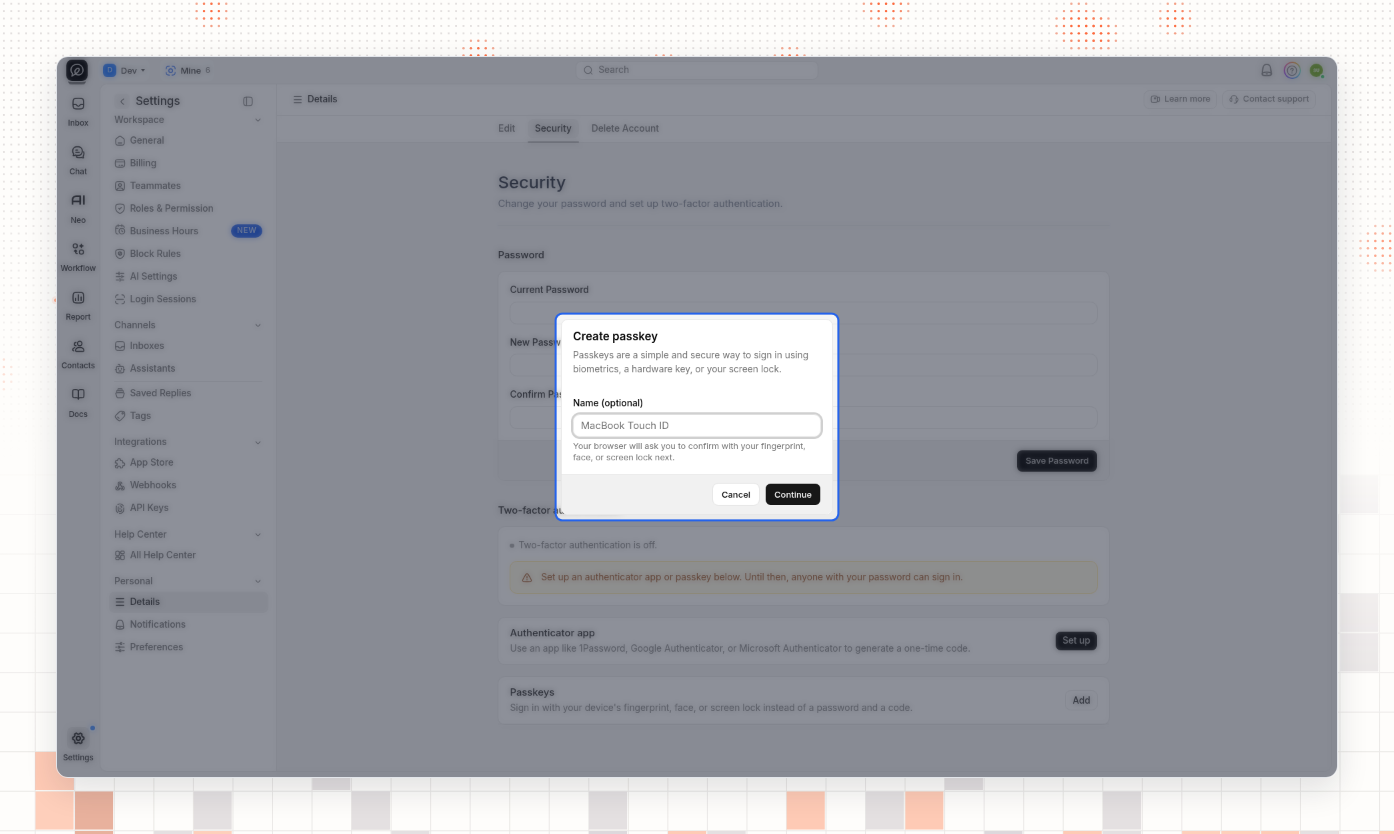
In Create passkey, optionally name the passkey (for example
MacBook Touch ID).Select Continue, complete your browser's passkey prompt, then confirm your account password when asked.
If the page says This browser doesn't support passkeys, open ThriveDesk in a browser that does, or use an authenticator app instead.
Sign in with a second factor
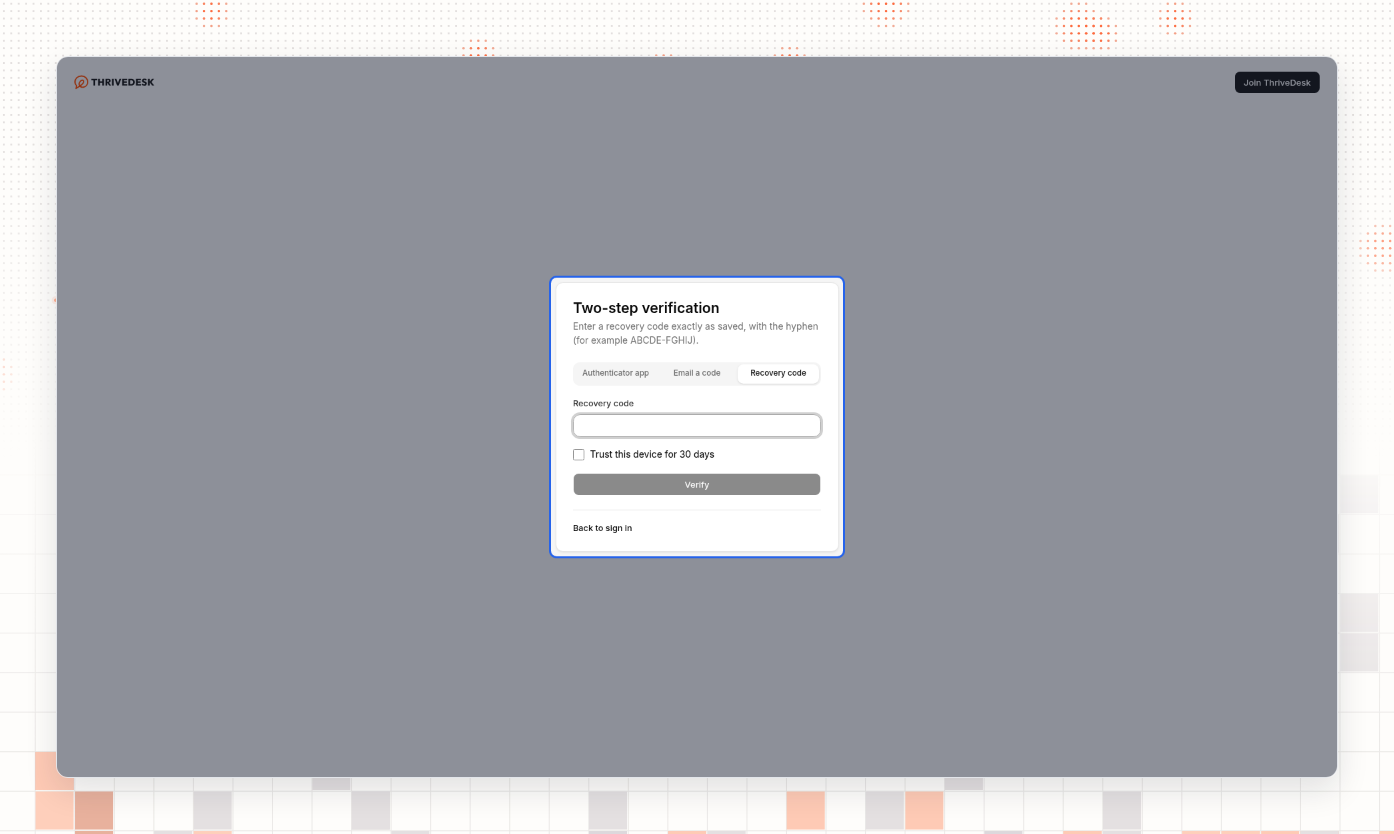
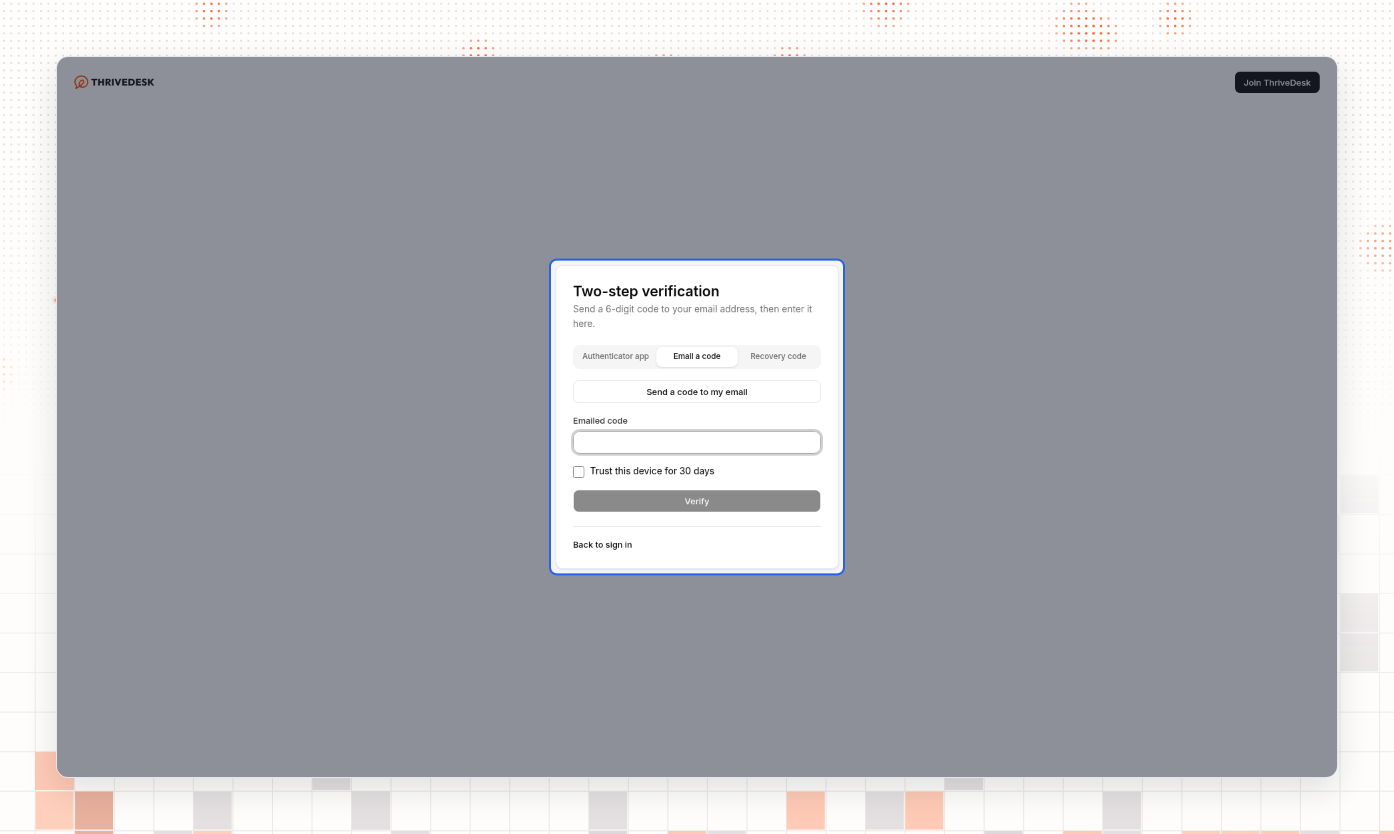
After your password is accepted, ThriveDesk opens Two-step verification. Only the methods your account has are listed (for example Authenticator app, Recovery code, Email a code, and Passkey when you have a passkey).
Choose a method.
Enter the code, or complete the passkey prompt.
Optionally turn on Trust this device for 30 days so this browser can skip the code for a month.
Select Verify.
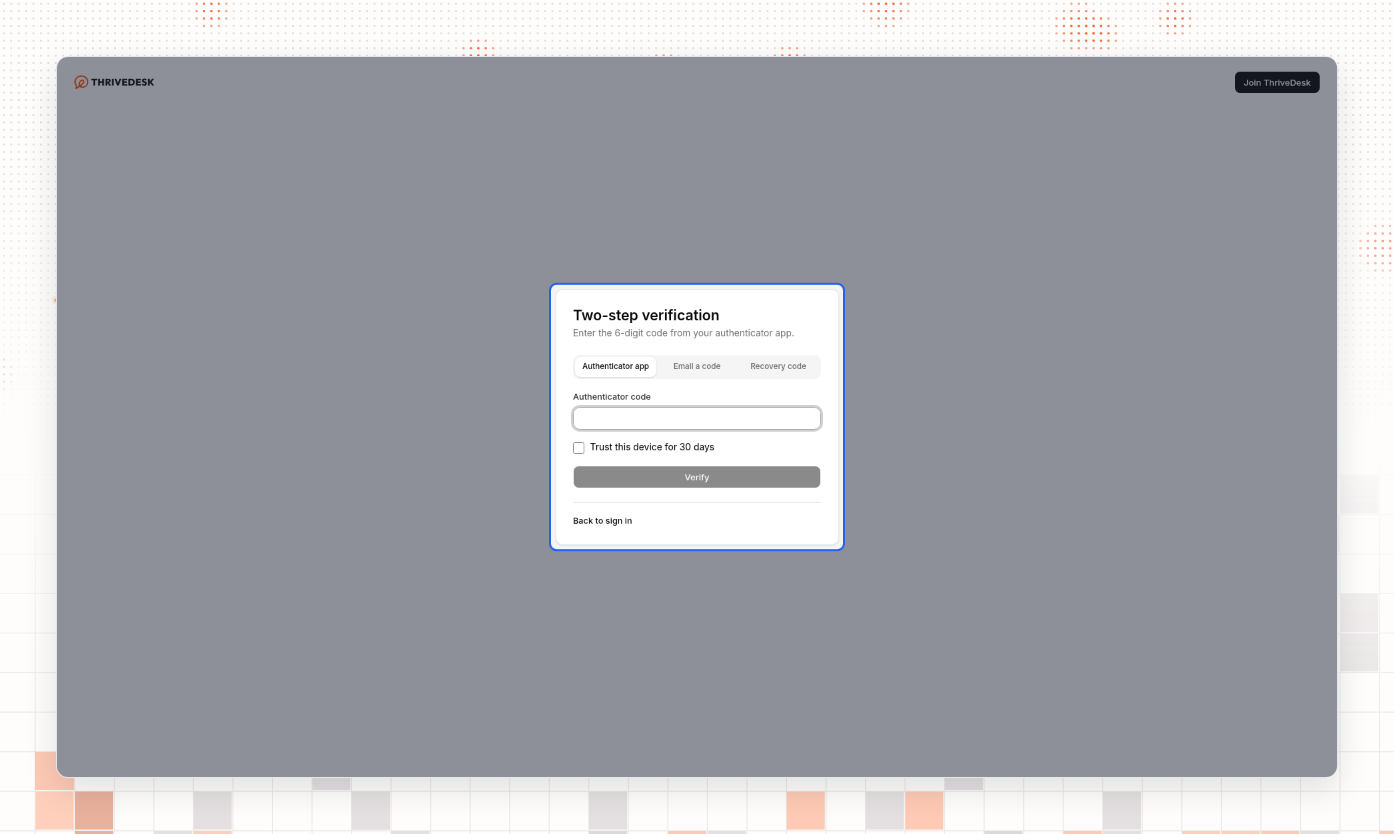
For a recovery code, enter it exactly as saved, including the hyphen (for example ABCDE-FGHIJ).
Email a code sends a 6-digit code to your account email. Select send, then enter the code.
Regenerate recovery codes
On Security, under Recovery codes, select Regenerate.
Enter your password and select Generate new codes.
Save the new codes, then select I have saved my recovery codes.
Your previous recovery codes stop working as soon as the new set is issued.
Turn off two-factor authentication
On Security, under Turn off two-factor authentication, select Turn off.
Enter your password and confirm.
Your password alone will be enough to sign in. Your recovery codes and every trusted device are destroyed.
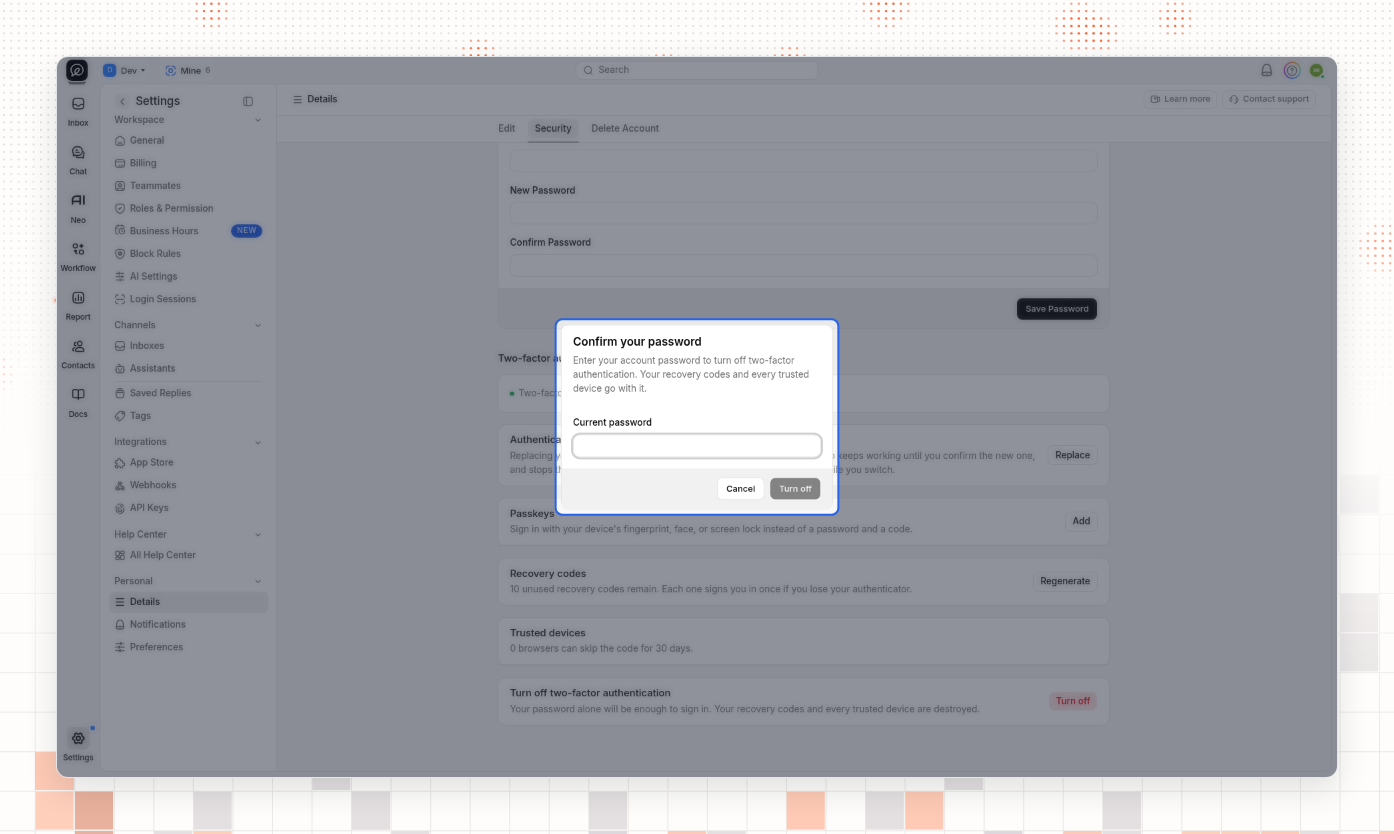
If your organization requires two-factor authentication, ThriveDesk refuses to turn it off. Set up a factor and keep it on, or ask someone with Company Write to stop requiring it for the organization first.
Require two-factor authentication for the organization
Owners and members with Company Write can require a second factor for every member.
Where to find it: Settings → General (under Workspace), then the Security section.
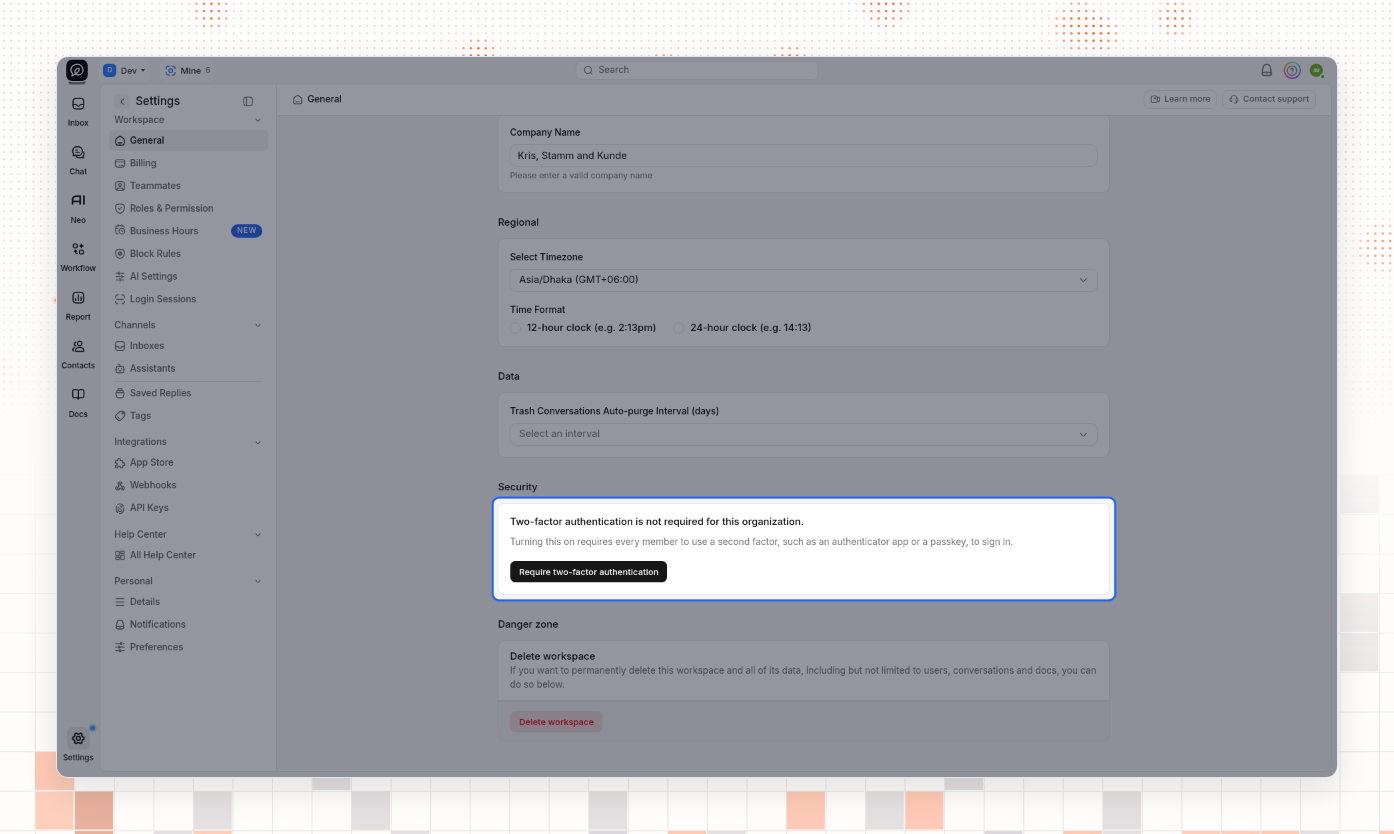
Select Require two-factor authentication.
Read the warnings. Anyone who has not set up a second factor — including you — must finish setup before they can use ThriveDesk again.
Confirm with Require two-factor authentication.
Members without a factor are sent to a setup screen: Your organization requires two-factor authentication. Set up an authenticator app or a passkey to carry on.
Stop requiring two-factor authentication removes the requirement only. Members who already turned it on keep their own setup.
What you should see
After personal setup, Security shows Two-factor authentication is on, a remaining recovery code count, and Turn off. The next sign-in from a new browser asks for a second factor. After you require it for the organization, members without a factor must enroll before they reach the inbox.
Common problems
Symptom | Cause | Fix |
|---|---|---|
Recovery code is rejected | Hyphen missing or wrong characters | Enter the code exactly as saved, including the hyphen (11 characters) |
Turn off fails with an organization message | Company requires 2FA | Keep a factor on, or stop the organization requirement first |
Passkeys Add is missing or unsupported | Browser has no WebAuthn | Use another browser, or set up an authenticator app |
You closed recovery codes without saving | Codes are not shown again | Select Regenerate, confirm your password, and save the new set |
You started authenticator setup and left | Enrollment was never finished | Select Start setup again and finish with a fresh QR / secret |
Questions
Do I need both an authenticator app and a passkey?
No. Either one turns two-factor authentication on. Using both gives you another way to sign in if one device is unavailable.
What does Trust this device for 30 days do?
It lets that browser skip the second factor for 30 days after a successful challenge. You can revoke trusted browsers later under Trusted devices on Security.
Does replacing my authenticator invalidate my recovery codes?
No. Replacing the authenticator stops the old app after you confirm the new one. Recovery codes stay valid until you regenerate them.
Related
How to set roles and permissions on ThriveDesk — who can change company settings such as requiring 2FA
Invite teammates — new members must enroll if the organization requires two-factor authentication
Last verified: 2026-11-17