

Si vous avez une application Shopify intégrée construite avec React et Shopify Polaris, vous pouvez intégrer le ThriveDesk Assistant directement dans l'administration Shopify. Cela permet aux commerçants d'accéder au support client sans quitter le panneau d'administration, créant ainsi une expérience de support fluide et ininterrompue à l'intérieur de votre application.
Créer le composant Assistant
Créez un nouveau fichier Assistant.tsx (ou Assistant.jsx si vous n'utilisez pas JavaScript) dans votre projet React.
Copiez le code suivant dans le composant :
import { useEffect } from 'react';

interface AssistantInterface {
  (method: 'init', options?: any, defaultOpen?: boolean): void;

  readyQueue?: Array<{
    method: string;
    options?: any;
    data?: any;
  }>;
}
declare global {
  interface Window {
    Assistant?: AssistantInterface;
  }
}


const Assistant = () => {

  const ASSISTANT_ID = "YOUR_ASSISTANT_ID_HERE";

  useEffect(() => {
    // Empêcher plusieurs injections de script
    if (window.Assistant) return;

    if (!window.Assistant) {
      window.Assistant = function (method: string, options?: any, data?: any) {
        (window?.Assistant?.readyQueue || []).push({ method, options, data });
      };
      window.Assistant.readyQueue = [];
    }

    // Charger le script de démarrage
    const script = document.createElement('script');
    script.src = "https://assistant.thrivedesk.com/bootloader.js?" + Date.now();
    script.async = true;
    script.onload = () => {
      // Initialiser l'Assistant après le chargement du script
      if (window.Assistant) {
        window.Assistant("init", ASSISTANT_ID);
      }
    };

    document.body.appendChild(script);
  }, []);

  return null;
};

export default Assistant;
Ajoutez votre ID d'Assistant
Ouvrez votre application ThriveDesk, naviguez vers la page d'installation de l'Assistant et copiez le ID d'Assistant.
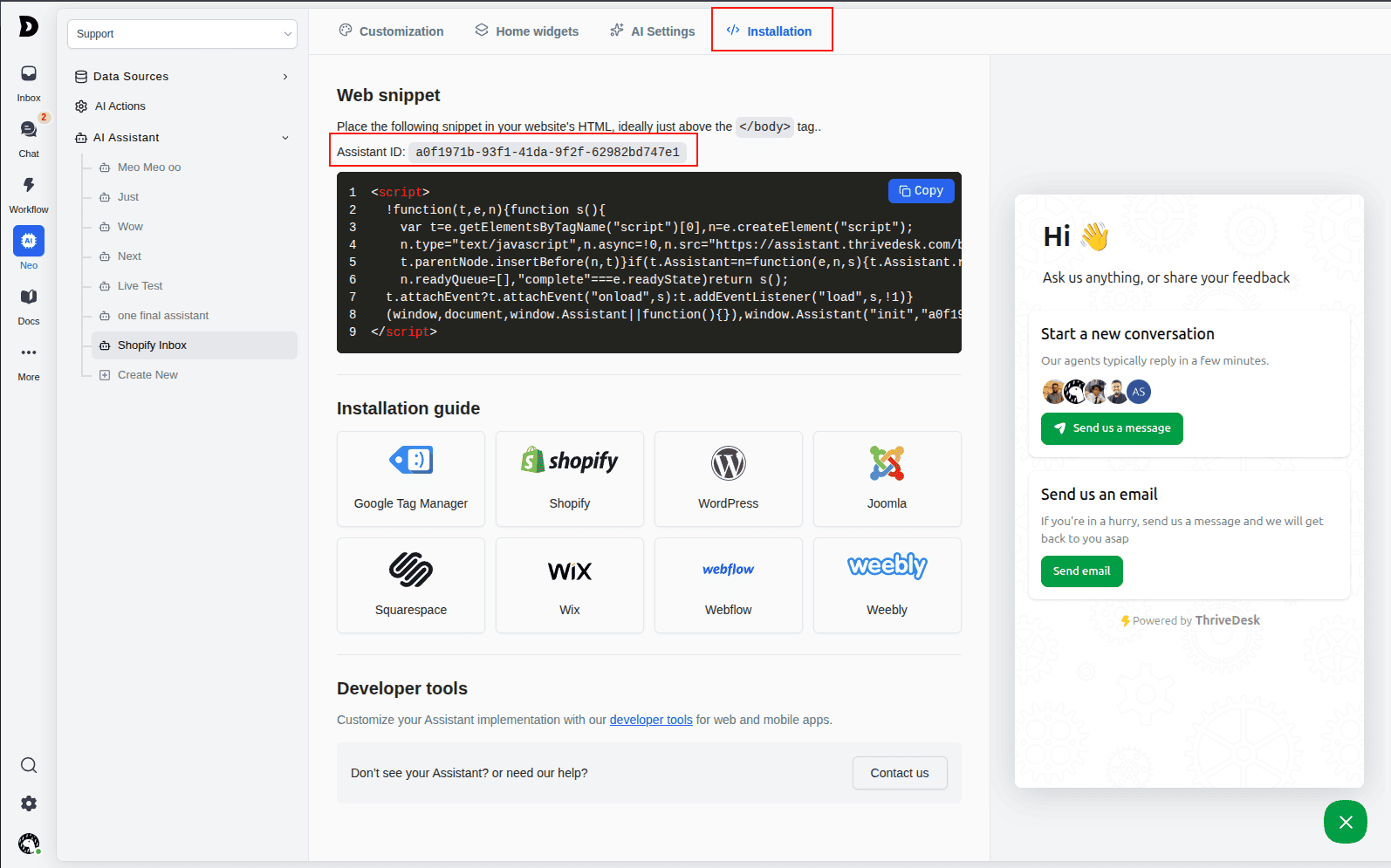
Remplacez "YOUR_ASSISTANT_ID_HERE" par votre véritable ID d'Assistant ThriveDesk dans le composant Assistant.tsx.
const ASSISTANT_ID = "a0542be2-5a5c-4afd-a5a7-687ae356aa36";Ajoutez le composant à votre application
Ouvrez votre fichier app/root.tsx et importez le composant Assistant, puis ajoutez le composant à l'intérieur de l'élément body
<body>
  {/* reste de votre contenu */}
  <Assistant />
</body>
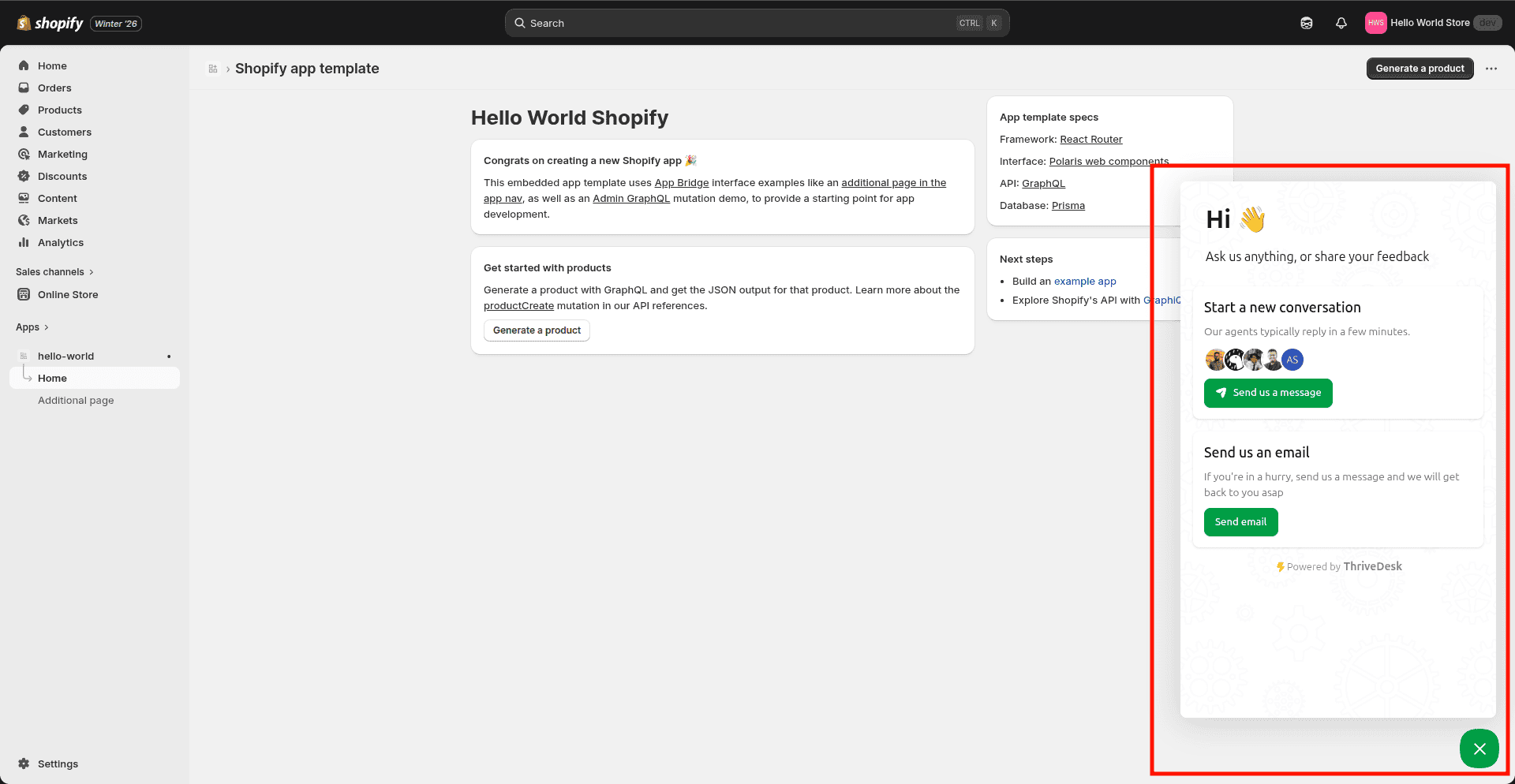
Eh bien, voilà. Votre assistant est dans votre administration Shopify. 🎉
Avez-vous des problèmes ?
Si vous rencontrez des problèmes lors du processus d'installation ou de configuration, nous sommes là pour vous aider. N'hésitez pas à nous contacter par e-mail ou message, et notre équipe de support résoudra rapidement tout problème que vous rencontrez. Votre succès est notre priorité, et nous nous engageons à garantir une expérience d'intégration fluide.